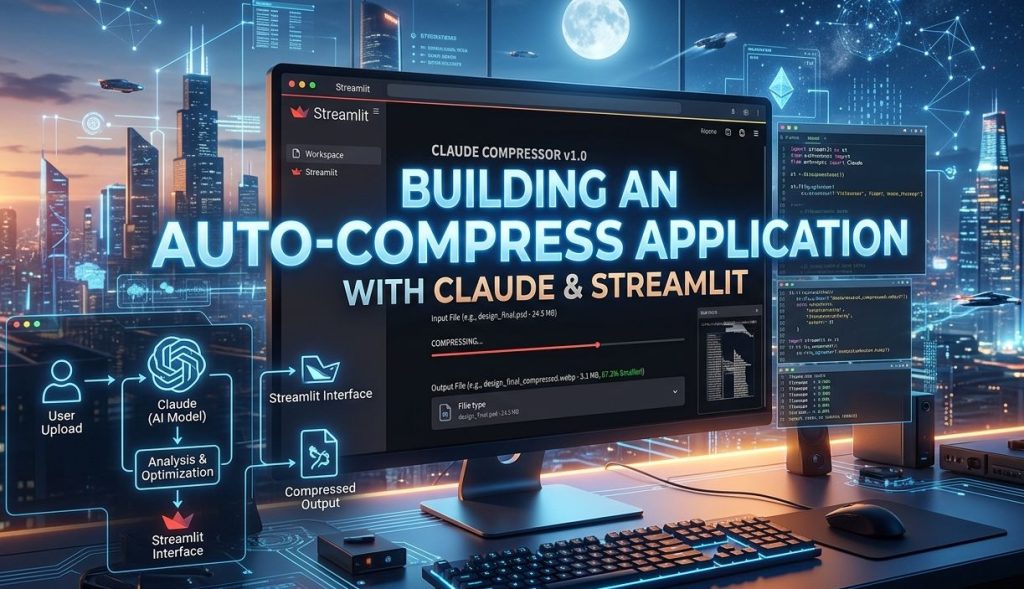
Lately, I’ve been dealing with a lot of situations where I need to compress images and PDF files, especially files that contain private or confidential information. These files are usually related to work, personal documents, or internal materials that shouldn’t be shared carelessly. The main issue with most online compression tools is trust. I don’t really feel comfortable uploading sensitive files to random websites, because we never truly know what happens to those files after the upload process is done.
Even if a website claims that files are deleted automatically, there’s always a small doubt in the back of my mind. Are the files really deleted instantly? Are they temporarily stored somewhere? Or worse, are they logged or cached without us knowing? These questions kept bothering me every time I had to compress a file online.
Because of those concerns, I decided to build my own solution. I wanted to create a website with one very clear principle: 100% privacy and zero ads. The core idea is simple — all files are processed locally on the user’s own device. No files are uploaded to a server, no cloud storage is involved, and nothing is saved in a database. Once the process is done, the files stay exactly where they belong: on the user’s laptop or computer.
This approach makes the app much safer for anyone who works with confidential data, such as company documents, contracts, scanned IDs, or personal files. Users don’t need to worry about data leaks, tracking scripts, or hidden analytics collecting information behind the scenes.
Recently, the rise of AI tools has made building applications like this much easier and faster. One of the tools I used is Claude, an AI assistant that helps generate code and structure applications based on clear instructions. Instead of writing everything from scratch, I could focus more on the idea and the requirements, while the AI helped translate those ideas into actual working code.
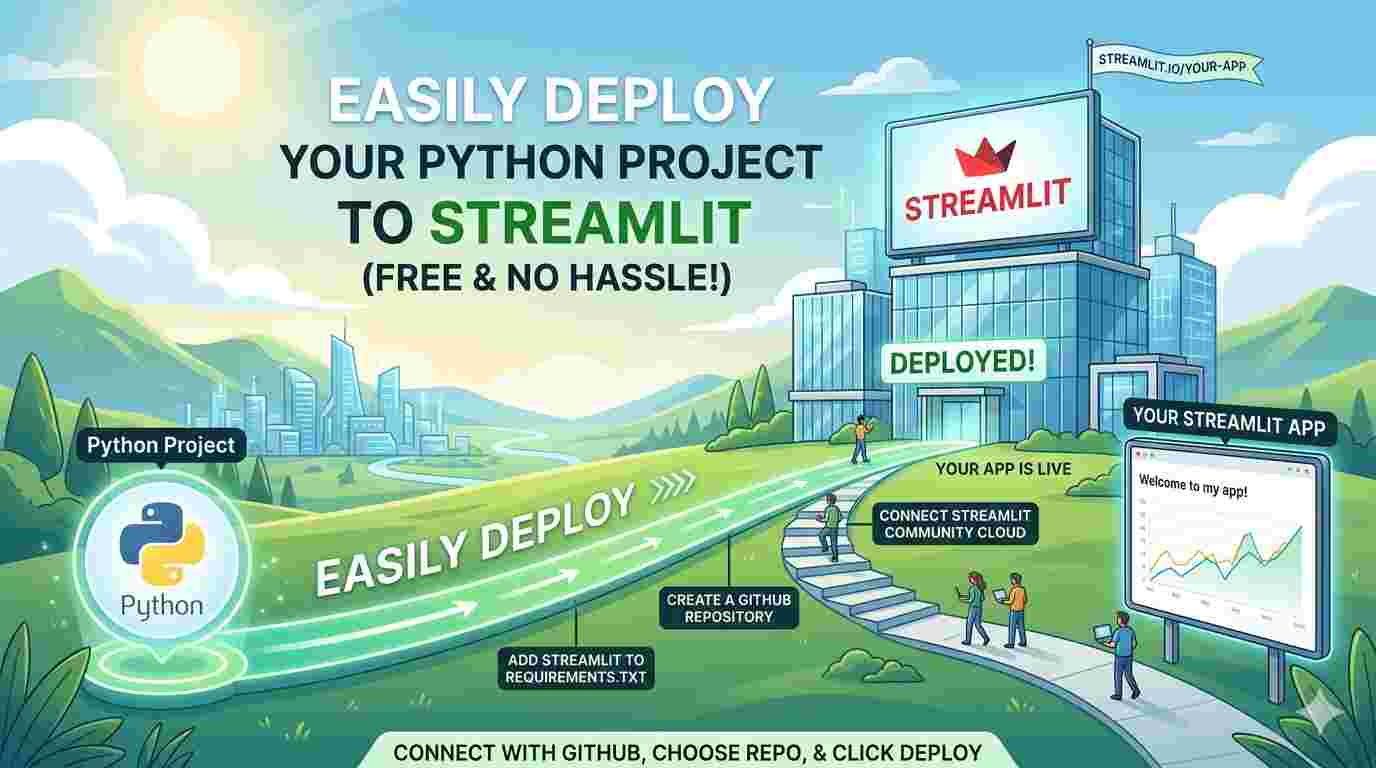
For deployment, I chose Streamlit as the platform. Streamlit is especially great for Python-based applications, and it allows you to turn a Python script into a web app with minimal effort. Another reason I chose Streamlit is because it’s beginner-friendly, free to start with, and perfect for small tools or internal utilities like this one. If you’re interested, you can find detailed tutorials and deployment guides directly on the this link.
Using Streamlit also makes the development process more enjoyable, because you can quickly test features, adjust the UI, and see changes in real time without complicated setups.
Before prompting Claude to generate the app, I learned that there are two important steps you should always do first. These steps help ensure that the AI-generated application is more mature, usable, and closer to what you actually want.
First, you need to decide which platform and technology stack you want to use. In my case, I clearly stated that I wanted to build the app using Streamlit with Python. Being specific here helps the AI generate code that fits the platform properly.
Second, you need to define the application specifications as clearly as possible. For my auto-compress app, the specifications included:
- Local-only file processing (no database, no server-side storage)
- Strong focus on user privacy
- Ability to set a maximum output file size
- Support for JPG, PNG, and PDF file formats
The more detailed your specifications are, the better the result will be. AI works best when it has clear boundaries and expectations.
Once those two steps are done, you can simply execute the prompt and let the AI do its job. After the initial version is generated, the next step is deployment. Deploying the app on Streamlit is quite straightforward, and you can follow their official documentation step by step.
If the generated app doesn’t fully match your expectations, that’s completely normal. This is where AI really shines. You can keep refining the app by asking for improvements, such as better UI, cleaner layout, additional configuration options, or performance optimizations. Just describe what you want, and the AI will help adjust the app accordingly.
This iterative process feels very natural, almost like collaborating with a technical partner who never gets tired of revisions.
For those who are interested in trying the app or reviewing how it works, I’ve made everything publicly accessible. You can check out the application and the source code through the links below:
One thing I really like about this project is transparency. Since the code is open for everyone to see, users can review it themselves and understand exactly how the file compression process works behind the scenes. Nothing is hidden, and nothing mysterious is happening in the background. This kind of openness builds trust, especially for users who care deeply about privacy and security.
Overall, AI has become a powerful tool in everyday life. It helps turn ideas into real, working products much faster than before. This auto-compress app is a small example of how AI can support practical needs while still respecting user privacy.
That’s all for this short review and guide from Kusuma Labs.
See you in the next article!




Leave a Reply